
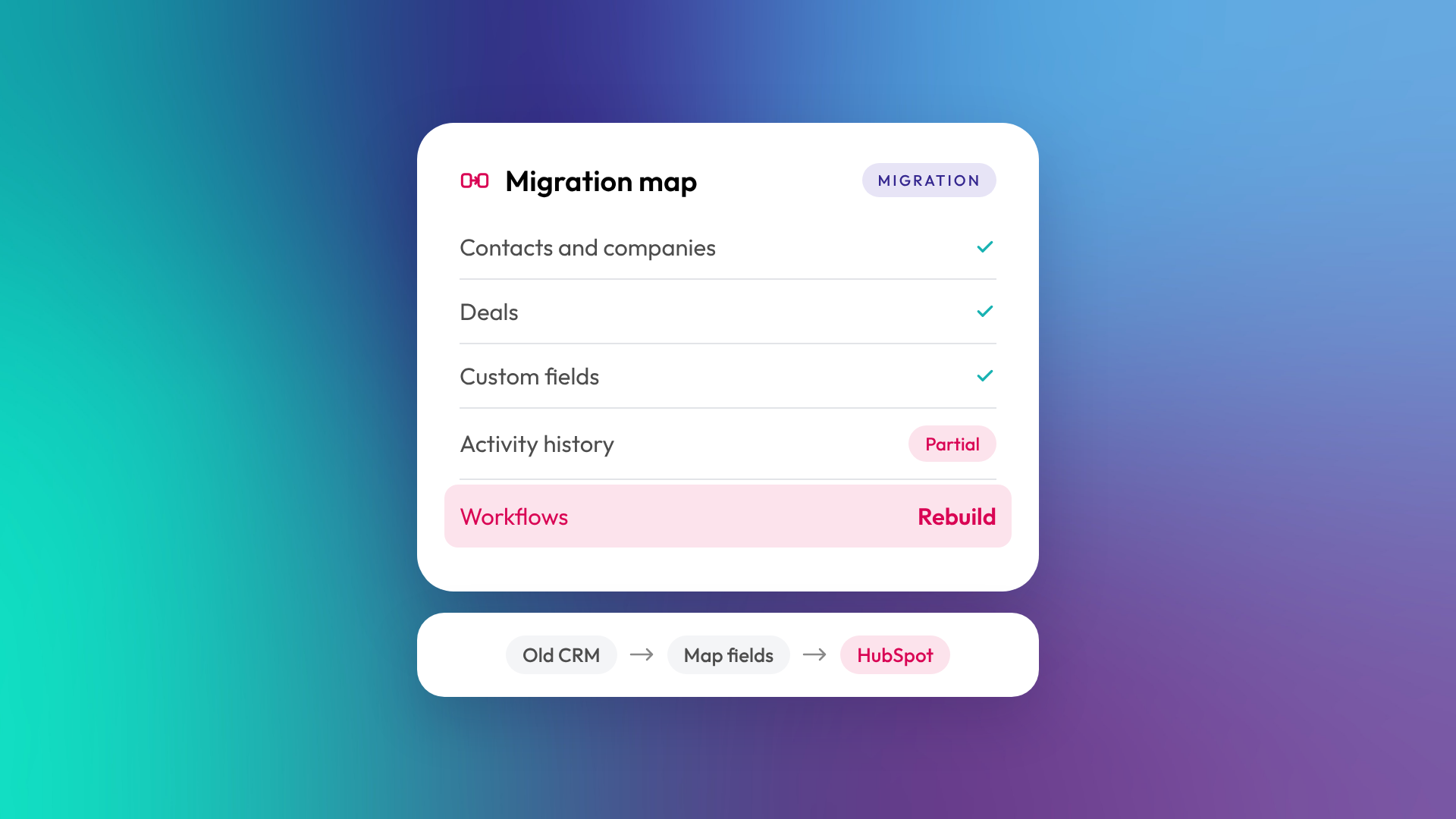
A CRM migration is the process of moving your customer data, sales history and processes from one CRM to another, such as from Pipedrive or Salesforce to HubSpot. Contacts, companies, deals and most custom fields usually come across cleanly. Activity history, attachments, automation and reports depend heavily on what your old system can export, and most automation needs to be rebuilt. Migrations are planned around what your old system can actually hand over.
What data moves across in a CRM migration?
Core records move across reliably in almost every migration. Everything else depends on the source system's export options and API. The table below is a realistic guide based on the migrations we run into HubSpot.

| Data | Usually migrates? | Notes |
|---|---|---|
| Contacts and companies | Yes | Clean duplicates first |
| Deals and pipeline stages | Yes | Stages are mapped to the new pipeline |
| Custom fields | Yes | Recreated as HubSpot properties |
| Owners and users | Yes | Users need to exist in HubSpot first |
| Notes | Usually | Depends on export format |
| Emails, calls and meetings | Sometimes | Varies a lot by system |
| Attachments and files | Sometimes | Often slow, sometimes not available |
| Automation and workflows | Mostly no | Usually rebuilt; Smart Transfer converts some Salesforce automation |
| Reports and dashboards | No | Rebuilt, not migrated |
| Email templates | Sometimes | Smart Transfer handles some sources; review each one |
| Sequences | No | Recreated by hand |
Why can't everything come across?
Every CRM stores data differently and exposes different amounts of it through exports and APIs. Some systems let you export activity history with timestamps and owners intact. Others only give you a flat file of notes, or nothing at all. Automation and reports are built on each platform's own logic, so most of it is rebuilt rather than moved. HubSpot's Smart Transfer can convert some Salesforce Flows and Workflow Rules into HubSpot workflows, but they still need checking.
This is why it's worth being sceptical of anyone promising a complete history migration. A good migration is honest up front about what will and won't come across, so you can decide what matters.
How long does a CRM migration take?
In OTM's experience, a migration combined with HubSpot onboarding takes 12 to 16 weeks for a typical growing B2B business. Smaller migrations with simple data can be quicker. Migrations with several source systems, custom objects or large volumes of history take longer.
The actual data transfer is a small part of that time. Most of it goes into mapping fields, cleaning data, rebuilding pipelines and automation, testing, and training.
What are the steps in a CRM migration?
A well-run migration follows the same sequence whatever the source system.
- Audit the old system. What's in it, what's used, and what's junk.
- Decide what to bring. Not every field or record is worth moving.
- Design the new structure. Objects, properties, pipelines and lifecycle stages in HubSpot.
- Map fields. Every old field gets a destination, or a decision to leave it behind.
- Clean the data. Remove duplicates, fix formats, archive dead records.
- Test import. Run a sample and check it with the people who use the data.
- Full import. Bring everything across in the right order so associations hold.
- Rebuild automation and reports. Recreate what you need, drop what you don't.
- Cut over and train. Switch the team, then support them through the first weeks.
Which CRMs can you migrate to HubSpot from?
Almost any CRM can be migrated to HubSpot, as long as it can export data. Common sources include Pipedrive, Salesforce, Zoho, Freshsales, Microsoft Dynamics, Mailchimp, Monday and spreadsheets. Some have direct import tools or connectors; others need data exported, reformatted and imported in stages.
The source system matters less than the state of the data in it. A tidy Pipedrive account migrates faster than a messy Salesforce org.
Should you clean your data before or during migration?
Both. Do the obvious clean-up in the old system before export, such as merging duplicates and deleting dead records. Then do structural clean-up during mapping, like standardising country names, phone formats and picklist values. Migration is the cheapest moment you'll ever have to fix data quality, because every record is being touched anyway.
How do you avoid disruption during a migration?
Pick a cut-over date, freeze changes to the old system's structure, and run a final delta import of anything created after the main import. Train your team before go-live, not after. Keep read-only access to the old system for a few months so people can check history that didn't come across.
Related reading: What is CRM implementation, and what does it involve?.
Common questions about CRM migration
Will I lose data in a CRM migration?
You'll keep your core records. Some history, attachments or activity details may not come across, depending on what your old system allows. A good migration plan tells you which before you start.
Can I keep using my old CRM during migration?
Yes, until cut-over. Most migrations run a main import, then a final top-up of new records just before the team switches.
Do workflows and automation migrate?
Mostly not. HubSpot's Smart Transfer can convert some Salesforce automation, but most automation is rebuilt in HubSpot, which is usually a chance to simplify it.
How much does a CRM migration cost?
It depends on data volume, the number of source systems, how much history you want, and how much rebuilding is needed. Comparing quotes is easier if each one lists what will and won't migrate.
Should I migrate everything?
Rarely. Contacts who haven't engaged in years, closed-lost deals from a decade ago and unused fields often cost more to migrate than they're worth.
Where to from here
Before you plan a migration, export a sample from your current CRM and look at what you actually get. That file tells you more about the project than any sales call. If you'd like help reading it, our migration services team does this every week.
