
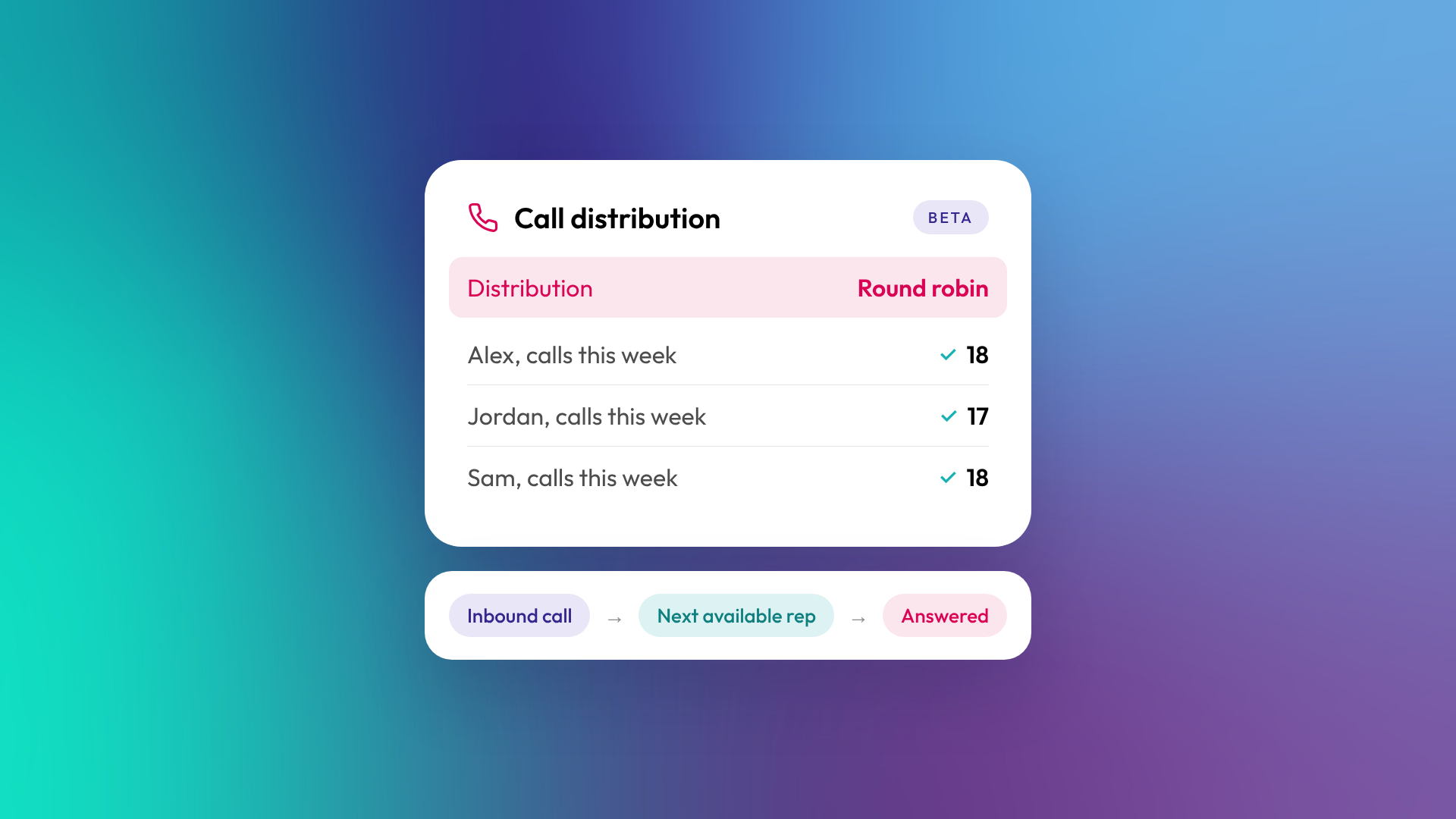
HubSpot calling now has a round robin option for inbound calls. Instead of ringing every available rep on a line at once, it rings one available person at a time and rotates through the team. It's in beta for Sales Hub and Service Hub on Professional and Enterprise, and it's set in the assignment settings of a calling channel.
What is round robin call routing in HubSpot?
When you set up a calling channel in Help Desk or the conversations inbox, you choose who handles calls on that number and how calls reach them. That second choice is the Distribution setting.
The existing option is Simultaneous. All available users assigned to the channel ring at the same time, up to 100 users, and the call goes to whoever answers first.
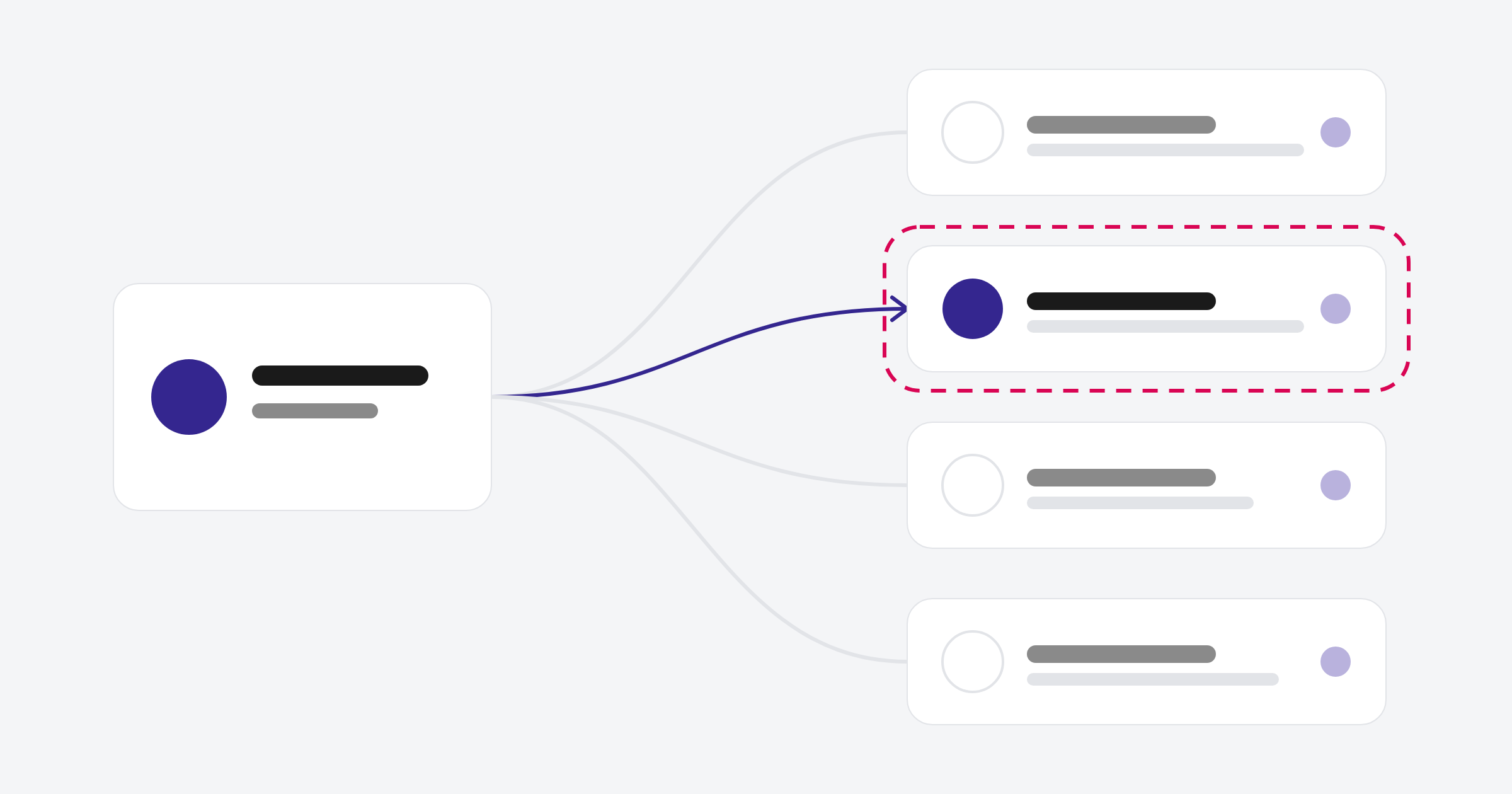
Round Robin is the new option. HubSpot rotates through the available users on the line and rings one person at a time, so inbound calls are shared across the team instead of landing on the fastest answerer.
The HubSpot help articles we checked don’t specify ring duration or whether an unanswered ring moves to another rep within the same call. While the feature is in beta, treat that as something to test in your own portal.
Why does round robin matter for sales and service teams?
Simultaneous ringing rewards whoever answers fastest. Over a few months that tends to mean a handful of reps carry most of the inbound load, while everyone else on the line gets fewer conversations.
Round robin can help spread inbound call opportunities more evenly. Each rep gets their turn, and the people who always grab the phone first get a break.
Keep an eye on answer times after you switch. Fairer distribution doesn't guarantee faster answers, so measure it rather than assume it.
More balanced call volumes may also make rep comparisons in your call reporting more useful. Availability, shifts and call mix will still affect the results, so read them with that in mind.
Round robin or simultaneous: which should you use?
Here's how we'd compare them. The "best for" row is our recommendation from client work, not a HubSpot rule.
| Round Robin | Simultaneous | |
|---|---|---|
| How it rings | One available user at a time, in rotation | All available users at once, up to 100 |
| Who gets the call | The rep it rings, if they answer | Whoever answers first |
| Best for (our view) | Sales lines and larger service teams where fair workload matters | Small teams or urgent support lines where speed to answer matters most |
Our rule of thumb: if your problem is uneven workload, try round robin. If your problem is callers waiting too long, stay on simultaneous and look at staffing and operating hours first.
How do you set up round robin routing in HubSpot?
The beta introduces a Round Robin distribution option in calling-channel assignment settings. Confirm the exact setup labels in your account before following these steps. HubSpot's main help articles don't yet cover the new Distribution selector, so check the labels in your own portal as you go.
- Set up a calling channel in Help Desk or the conversations inbox.
- In the channel settings, open the Set up assignment tab.
- Under Ticket & call assignment, choose Specific users and teams and select the reps or teams who should handle calls on that line.
- Under Distribution, select Round Robin.
Check outbound calling access separately. Users need the appropriate seat and calling configuration; an assigned Service seat is required to make calls in Help Desk.
What should you check before you switch it on?
Round robin is a small setting with a few knock-on effects. These are the things we'd check in a portal before turning it on.
- Plan for missed calls. HubSpot's standard calling channel documentation says an unanswered call creates an unassigned conversation thread and notifies the users assigned to the channel. If your channel is in Help Desk, also check your ticket settings so you know what gets created and who owns it. Either way, agree who follows up missed calls and how quickly.
- Check operating hours and voicemail. Check your channel's operating hours and after-hours voicemail settings so calls outside business hours go where you expect.
- Keep availability accurate. Round robin rotates through available users. If your team doesn't keep their availability up to date in HubSpot, calls will go to people who aren't at their desk.
- Check seats. Round robin is available on Sales Hub and Service Hub Professional and Enterprise. Make sure everyone in the rotation has the seat they need for calling.
- Benchmark first. Pull calls by owner and answer times for the last 90 days before you switch. You'll want a before and after to show whether the load evened out and whether callers are waiting longer.
- Test the beta. Try it on one line first, including what happens when a rep doesn't answer. Don't assume it automatically retries the next rep.
Frequently asked questions
Which HubSpot subscriptions include round robin call routing?
Sales Hub Professional and Enterprise, and Service Hub Professional and Enterprise. It's currently in beta.
What happens if a call goes unanswered?
HubSpot's standard calling channel documentation says an unanswered call creates an unassigned conversation thread and notifies the users assigned to the channel. Your team should have a clear process for assigning and following up missed calls. Test the round robin beta's unanswered-call behaviour before you roll it out, and don't assume it automatically retries the next rep.
How many users can be included in call routing?
HubSpot documents a limit of 100 users ringing simultaneously on a calling channel. HubSpot’s help articles document up to 100 users ringing simultaneously. We couldn’t verify the maximum size of a round-robin rotation.
Can I still use simultaneous ringing?
Yes. Simultaneous stays available as a Distribution option, and you can set it per calling channel.
Need a hand with HubSpot calling?
We set up calling channels, assignment rules and the reporting around them as part of our HubSpot onboarding and optimisation work. If your inbound calls are landing on the same few people, let's talk.
