
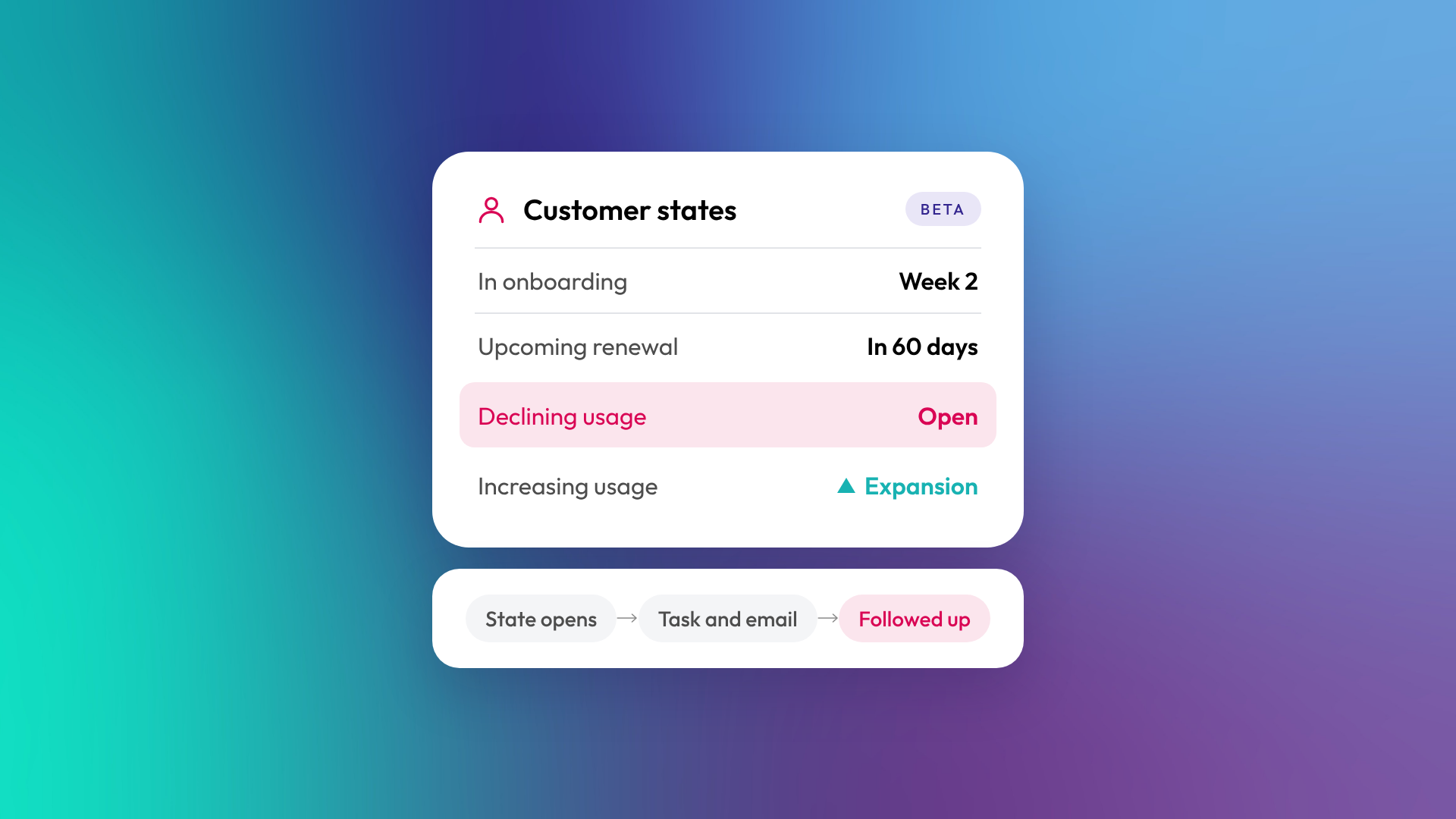
Customer states are a beta feature for Service Hub Professional and Enterprise accounts. A super admin can opt the account into the beta, subject to availability. Full Customer Success workspace access requires an assigned Service Seat and the appropriate permissions.
What problem do customer states solve?
Customer states give your customer success managers one structured signal for each moment that matters, instead of context scattered across tickets, usage data, notes and inboxes. When that context is unstructured, key moments get missed and follow-up depends on who happens to be looking.
We see this in a lot of portals. The renewal date sits in a property, the usage drop sits in an integration nobody checks, and the unhappy email sits in one person's inbox. States put the signal on the record where the whole team can see it, and pair it with a defined response. That's how follow-up gets consistent, and consistent follow-up is what protects retention.
Which customer states are available?
HubSpot documents nine states in three groups: lifecycle, risk and opportunity. Five of the nine are risk states, so most of the list is about catching churn early.
| Category | States | What they're for |
|---|---|---|
| Lifecycle | Onboarding, Customer activated, Upcoming renewal | Moments every customer passes through |
| Risk | High ticket volume, Declining usage, Critical support ticket, Ticket SLA violation, No recent touchpoints | Signals a customer may be heading for churn |
| Opportunity | Increasing usage | Signals a customer may be ready to expand |
How does a customer enter a state?
Customers enter a state automatically when they meet its trigger criteria, and each enrolment records the events that triggered it. You can see each state's criteria in the Customer success workspace, but HubSpot doesn't document a way to change them. What you control is who each state applies to and what happens next.
For each state, you set the audience: all customers, only customers in selected segments, or all customers except those segments. Customer success managers then log and resolve states as they work through them.
What follow-up actions can a state trigger?
You configure follow-up actions for each state on the Actions tab. There are four action types:
- Draft an email. Custom content, a saved template, or a draft written with AI.
- Create a task. Hand the follow-up to the customer success manager.
- Enrol in or unenrol from a sequence. For example, start a renewal sequence, or pull contacts out of an upsell sequence when a risk state opens.
- Send a notification. Alert the team in Slack or Microsoft Teams.
Follow-up actions only run for new enrolments. Customers who already meet a state's criteria when you add an action won't get it, so plan a one-off sweep of anyone already sitting in a risk state.
When should you use a workflow instead?
Use a workflow when the response needs timing, branching or several steps. The Customer states property can trigger a workflow, and workflows give you delays and if/then branches. HubSpot's documentation for workspace follow-up actions doesn't cover delays or ordering, so we'd keep anything time-sensitive in a workflow.
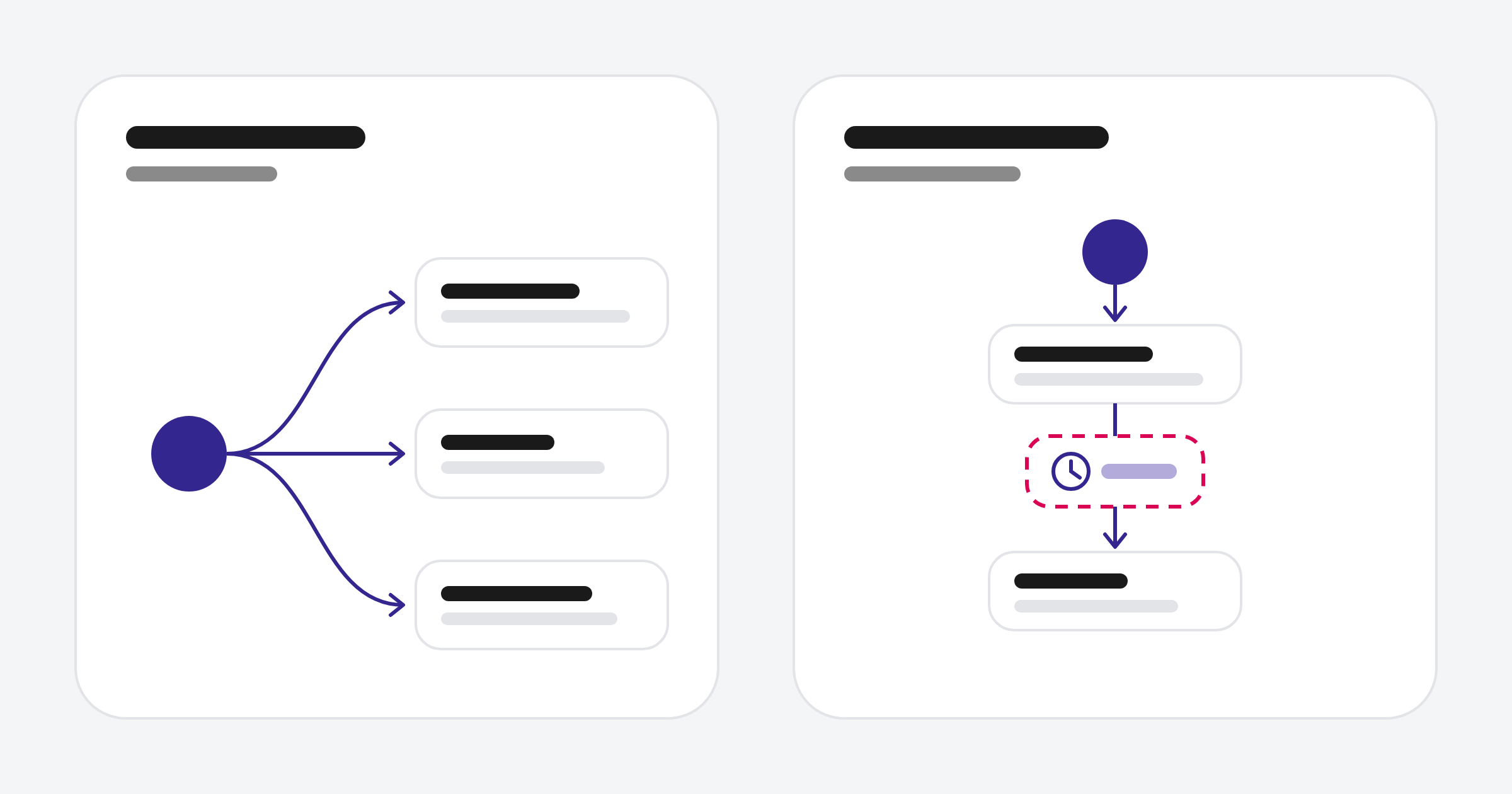
Here’s an illustrative workflow pattern we’d configure and test for Declining usage:
- Create a task for the CSM straight away.
- Wait five business days.
- If no meeting has been logged, notify the account owner in Slack.
The same property also lets you filter records, build views and report on states. The workspace Summary page shows a Recent customer states card.
How do you set up customer states?
States are on by default once the beta is active, but some need data or setup before they'll fire. Here's the order we'd work in:
- A super admin opts the account into the Customer States and Follow-up Actions beta.
- In the Customer success workspace, switch each state on or off under the Status column.
- Set the audience for each state you're keeping.
- Add follow-up actions on the Actions tab.
The states that need extra setup:
- Customer activated, Declining usage and Increasing usage need product usage signals configured. Customer activated also needs a tracked product feature.
- Onboarding needs an active onboarding project.
- Ticket SLA violation identifies customers with tickets that have missed their SLA. Check the state’s requirements and ensure applicable ticket SLAs are configured.
What should you check before relying on customer states?
Check that the data behind each state is actually in HubSpot. A state is only as reliable as the data it reads.
- Usage states mean little if your product doesn't send usage signals to HubSpot.
- No recent touchpoints flags customers whose communication has dropped below their usual cadence. Review the state’s displayed criteria before relying on it.
- Ticket states assume your help desk, ticket priorities and SLAs are set up properly.
- Audiences decide who each state applies to, so your segments need to reflect how you actually tier customers.
Then start small. Pick two or three states that match moments your team already cares about, give each one clear follow-up, and review after a month. Add the rest once the first ones are trusted.
This is a beta, so names, states and behaviour may change.
FAQ
Which HubSpot plans include customer states?
Service Hub Professional and Service Hub Enterprise. A super admin also needs to opt the account into the beta.
Do customer states work without any setup?
Partly. States are on by default once the beta is active, but usage and activation states need product usage signals, Onboarding needs an onboarding project, and SLA-based states need ticket SLAs. You'll also want to set each state's audience and follow-up actions.
Can I change a state's trigger criteria?
You can view the criteria in the Customer success workspace. HubSpot documents the audience and follow-up actions as configurable, not the criteria themselves.
Do follow-up actions run for customers already in a state?
No. Follow-up actions only run for new enrolments.
Can I add a delay before a follow-up?
Use a workflow for that. The Customer states property can trigger a workflow, where you can add delays and branches.
Can AI write the follow-up email?
Yes. The email action can use custom content, a template, or an AI-drafted email.
Want help mapping states to your customer journey?
States work best when they mirror the moments your business already runs on, like onboarding milestones, renewal windows and the signals your best CSMs spot by instinct. If you'd like a hand setting up the audiences, usage signals and workflows behind them, let's talk.
Sources: HubSpot Knowledge Base, Track and respond to customer changes with customer states; Track activation and product usage in the customer success workspace; Use the customer success workspace; Opt a HubSpot account into a beta feature.
