A little, inside HubSpot's settings. You can set the logo, a brand colour, the welcome screen and the booking questions, but the layout, fonts and buttons stay HubSpot's. If you want a booking page that looks completely different, you build your own interface on top of the meeting link, and HubSpot still does the scheduling underneath. That's what we did on our book-a-call page.
What you can change in HubSpot
Every scheduling page has a handful of settings that change how it looks and what it asks:
- Logo. It comes from the brand you select on the scheduling page.
- Colour. A primary colour from your branding is applied to parts of the calendar.
- Welcome screen. The image and text people see before they pick a time.
- Booking questions. Add your own fields to the form people fill in when they book.
- URL, availability and payments. Edit the link, set your hours and buffers, and collect payment if HubSpot payments or Stripe is connected.
Set these up properly and the standard link does a good job. For most businesses it's the right place to start.
What you can't change
The fonts, the layout, the spacing, the order of the steps and most of the button wording are fixed. The embed loads inside a frame on your page, so your site's styling can't reach it.
That's why so many booking calendars look slightly out of place on otherwise well-built sites. On ours, the colour settings produced a dark calendar sitting in the middle of a light page.
Going further: your own booking interface
We wanted the calendar to look like it was designed with the rest of otm.com.au, because it was. So we built the booking interface ourselves.
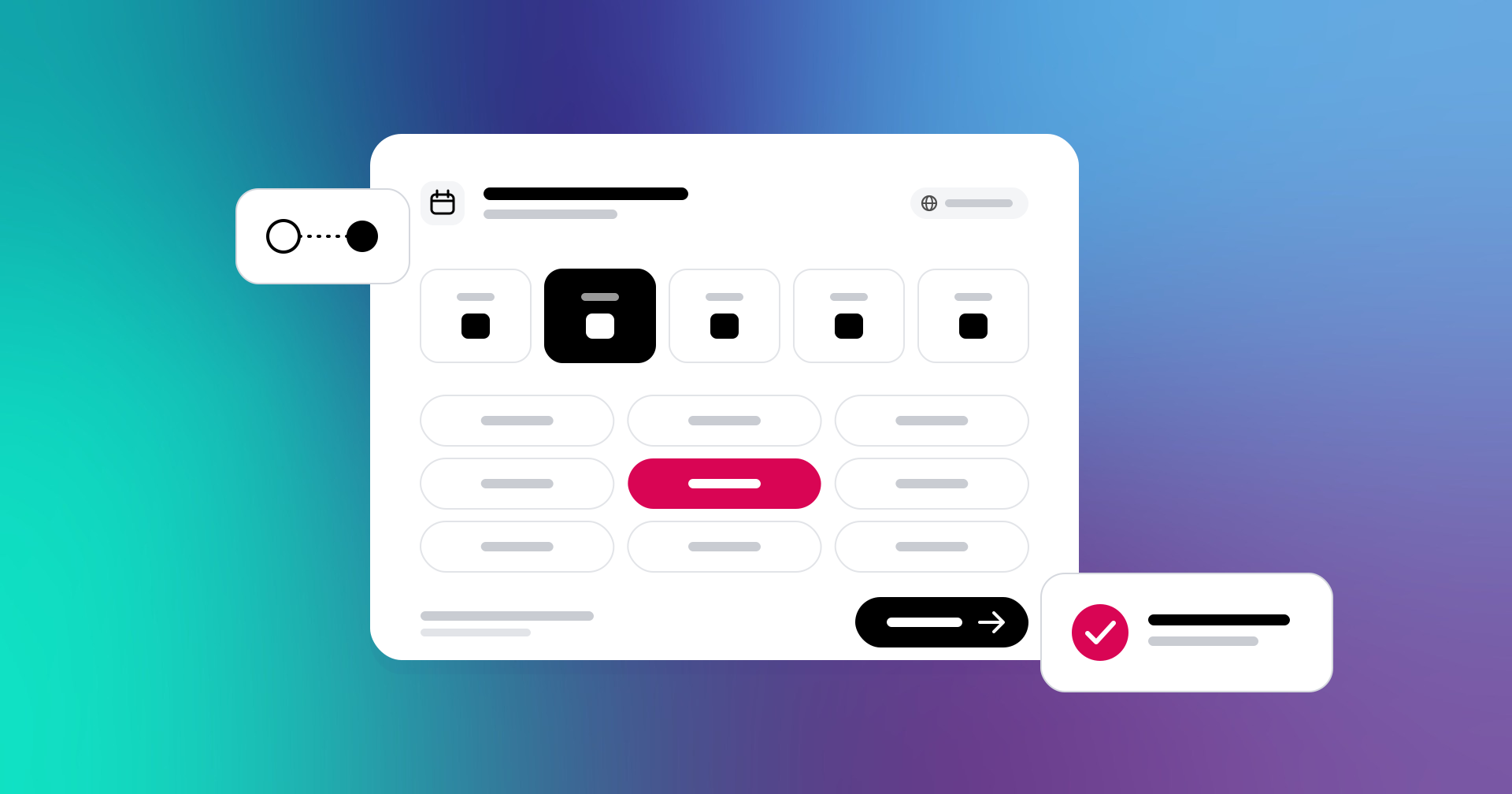
Visitors see the next available days as a row of buttons and the open times as pills that match the buttons across our site, with their timezone shown. They pick a time, then answer three questions in the same style as our other forms: their company, what they'd like to cover, and which HubSpot subscriptions they already have.
Underneath, it's still HubSpot. Availability comes from our discovery-call meeting link, and bookings land in our HubSpot calendar with the answers attached. Confirmation emails and invites work the way they always have. If we change our hours or buffers in HubSpot, the page picks them up.
What it takes to build
The page needs something on a server to talk to HubSpot's meetings API, because the access token can't sit in the browser. HubSpot's own serverless functions can do that, but a public endpoint on a HubSpot-hosted page needs Content Hub Enterprise. We're on Content Hub Pro, so the booking logic runs on a small external service on Cloudflare instead.
Most of the work went into what happens when things go wrong. Before connecting the real portal, we ran 28 automated checks against a mocked version of HubSpot's API: someone else taking a slot between page load and confirm, availability spread across more than one page of results, and timezone handling. If the booking service can't reach HubSpot, the page falls back to the standard HubSpot embed, so nobody lands on an empty calendar.
One detail that caught us out: the API wanted the meeting length in milliseconds, not minutes. Worth knowing if you're building your own.
Which option suits you
It depends on how much work your booking page does. If people mostly book from links in emails, the standard link with your branding set up is plenty.
If you have the skills to roll out your own, or someone on hand who does, we'd go custom every time. It looks better, it asks exactly what you need to know before a call, and your booking page finally feels like part of your site. The one thing to plan for is that someone looks after a small service outside HubSpot.
See it working
The easiest demo is the real thing. If you'd like to talk about your HubSpot portal, book a call. You'll be using it.
.png)